
Apple iOS 5 is released with lots of new feature and improvement, one of them is iCloud. With the help of iCloud you can back up your entire device iPad, iPhone or iPod. With the help of iCloud you can backup all your data like messages, call logs, contacts, photos, calendars, notes all. It’s an awesome service, it’s free, and you don’t want to miss it.
Here’s how to set it up from any iPhone, iPad:
1. Download and Update iOS 5 for iPad and iPhone here
2. After the update Tap on the Settings
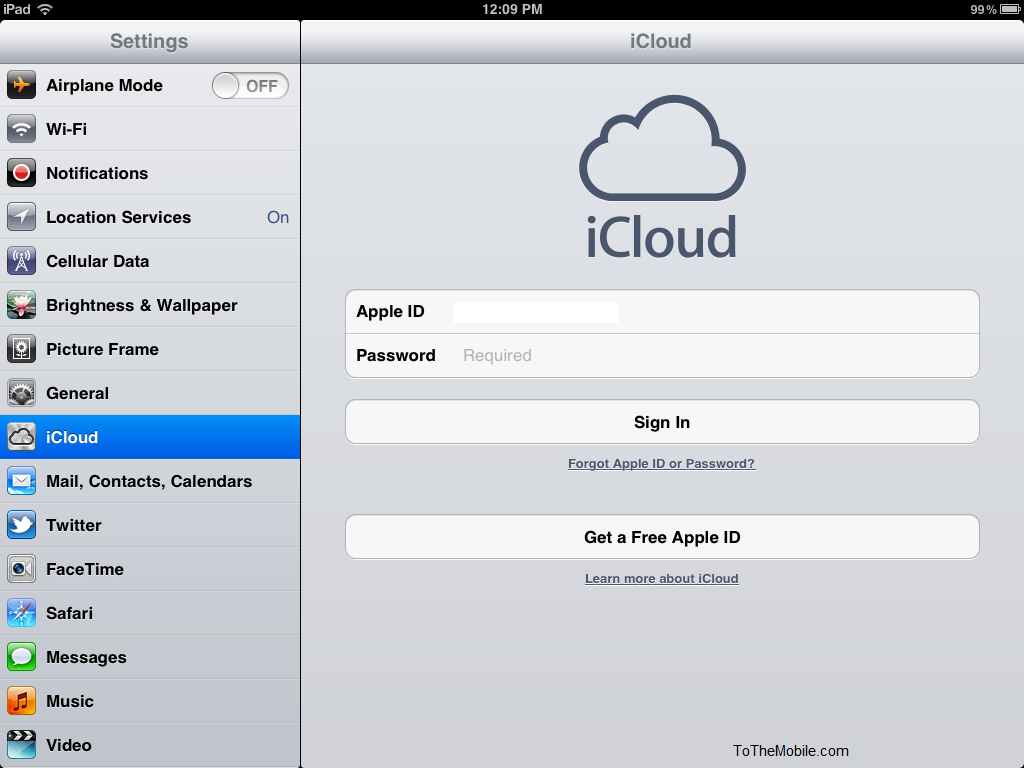
3. Now tap Tap on iCloud
4. Choose Sign in with an Apple ID and Login with Your Apple ID and password. If you don,t have the Apple ID, you can create a new account entirely by selecting Create a free Apple ID
5. Now you can see the iCloud setup screen, Tap the ON switch for the types of data and services you want to sync with iCloud: Mail, Contacts, Calendars, Reminders, Bookmarks, Notes, Photo Stream, etc.

6. Now Tap on the Storage & Backup option, Now you are on the new screen. Tap the ON switch of iCloud Backup button. After that click the Backup now and you are ready to backup all your mail, contacts and all on iCloud

pleas help me for use icloud application on my ipad i cant use it, dont work. please say one by one and can i download this? where? tnx